 Card Timeline
The short answer
Scan time-in-stage badges in your active queues, open a card’s Timeline to check its journey, and use a stage-warning threshold to flag long stays in the summary. Treat the warning as a reason to review the card, not an automatic diagnosis.
1. Decide which queues need a closer look
Start with lists where a delay would matter: In Progress, Review or Waiting for approval, for example. Think about what a normal stay looks like in your workflow.
Review the meaning of each list before labelling a card as stuck. A long stay in Done or a deliberately parked backlog is different from an overdue review. Card Timeline+ provides duration and history; your team supplies the context.
2. Scan time-in-stage badges
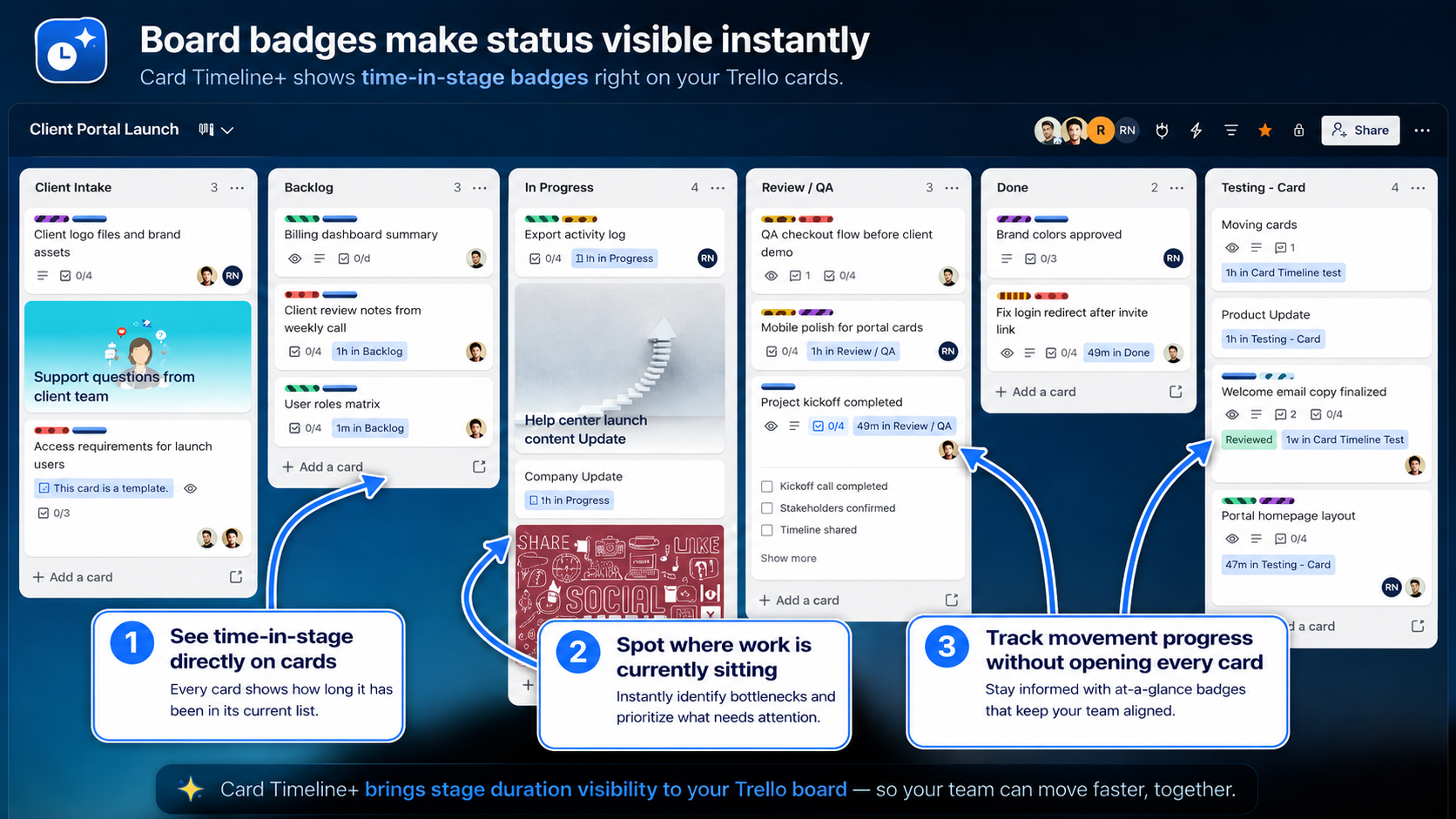
In Card Timeline+ Settings → Badge, turn on Show on cards and select Time in stage. Reload the board if necessary, then look for long stays in the queues you chose.
The board screenshot shows where those badges appear. Start with one card that stands out rather than trying to investigate every old card at once.
If badges are new to you, follow the time-in-list guide first. It explains the difference between elapsed waiting time and hours worked.
3. Choose a stage-warning threshold
- Open Card Timeline+ Settings.
- Choose the Warning tab.
- Enable Enable warnings.
- Use After to select the threshold: 1 day, 2 days, 3 days, 5 days or 1 week.
Choose a threshold that fits how your board is reviewed. For example, a team that reviews waiting work every few days might start by considering a three-day threshold. That is an example, not a universal target.
Warnings appear in the card’s Timeline Summary as Needs attention when the tracked stage reaches the applicable threshold. The settings reference explains the controls.
4. Open the history before taking action
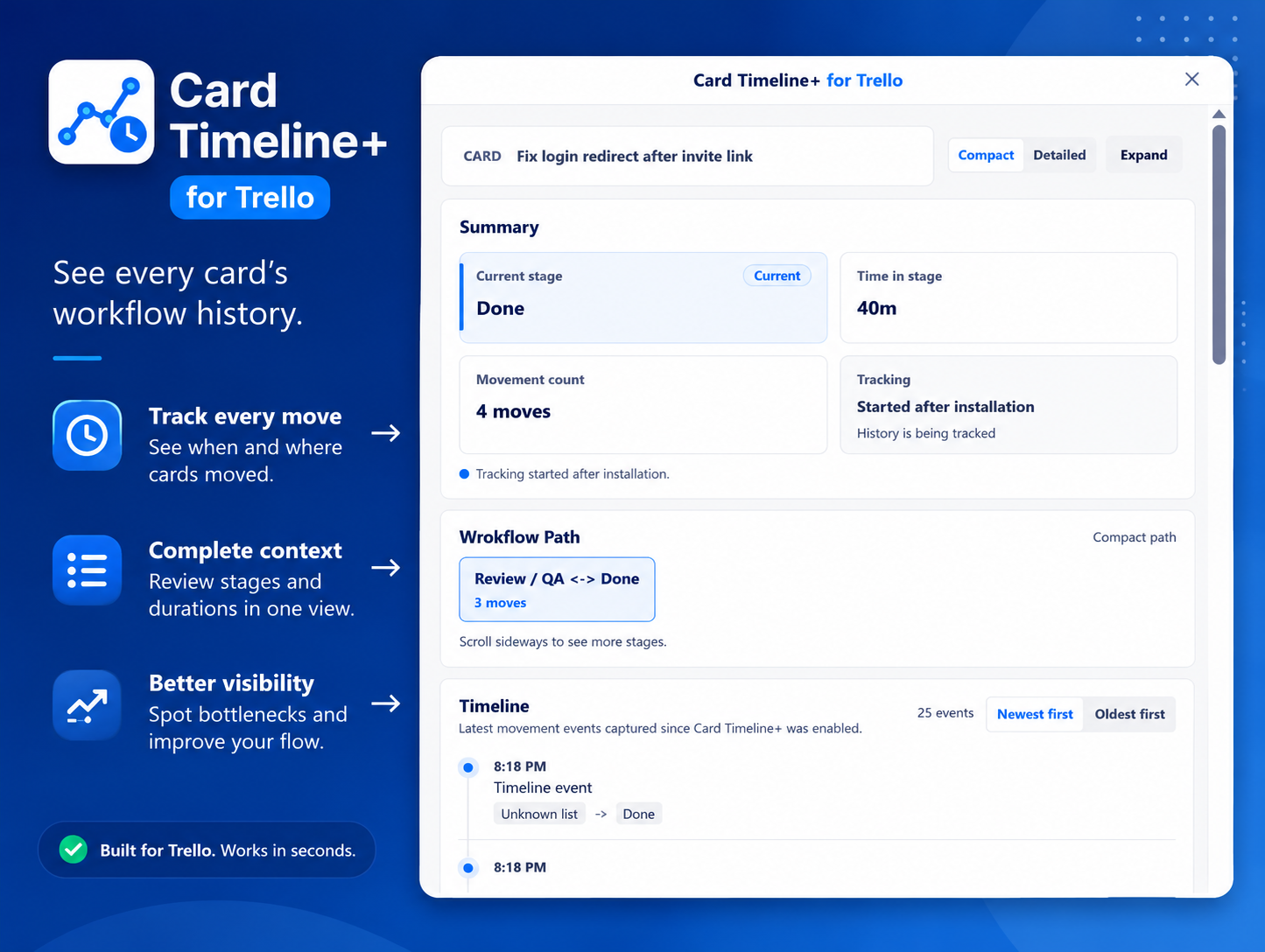
Open the card, choose Power-Ups → Timeline, and check the current stage, duration and tracking note. Then read its workflow path and recent moves.
- A long uninterrupted stay: check whether the card is waiting for a decision, input or a handoff.
- Repeated returns to a stage: look for missing context or repeated rework in the card’s discussion.
- Partial tracking: confirm what the recorded history actually covers before drawing a conclusion.
The history gives you a useful starting point. Ask the card owner what is needed next rather than inferring a cause from a duration alone.
5. Turn the signal into a next step
Use this short routine in a board review:
- Identify one card with a long stay in an active queue.
- Confirm its current stage and the latest recorded move.
- Agree on a next action and who will take it.
- Update the card’s discussion or checklist using your normal Trello workflow.
Move the card when the work has actually progressed. A lower duration is useful only when it reflects a real change in the work.
A useful review question: “What does this card need to move forward?” A stage warning helps you choose where to ask it.
Common questions
Does a warning prove that a card is blocked?
No. It means the tracked stay has met the applicable time threshold. Confirm the list’s purpose and ask the team about the card before deciding what to do.
Should I investigate old cards in Done?
Not simply because their time is large. Start with active queues where waiting affects your work. A long stay in a completed list can be expected.
What if I need the whole board’s performance statistics?
This workflow uses card-front badges and individual card histories. Card Timeline+ is not a board-wide team-performance analytics dashboard.
Try it on your own board.
Add Card Timeline+, complete Trello authorization when prompted, and start with one card. Tracking begins after enablement.
Install Card Timeline+