 Card Timeline
The short answer
Open a Trello card, choose Power-Ups → Timeline, then review its summary, workflow path and recorded list moves. Card Timeline+ records movements after it is enabled on the board; earlier history is not imported.
Before you start
Add Card Timeline+ to a board you can manage and complete Trello authorization when prompted. If your board needs an administrator to add Power-Ups, ask them to complete that step.
Use a card with recorded list moves. A newly enabled board may not have much history yet. You can follow this guide using an existing tracked card; you do not need to change real work just to test the view.
What this history covers: list movements captured by Card Timeline+. Comments, checklist edits and description changes are outside this view.
1. Open Timeline from the card
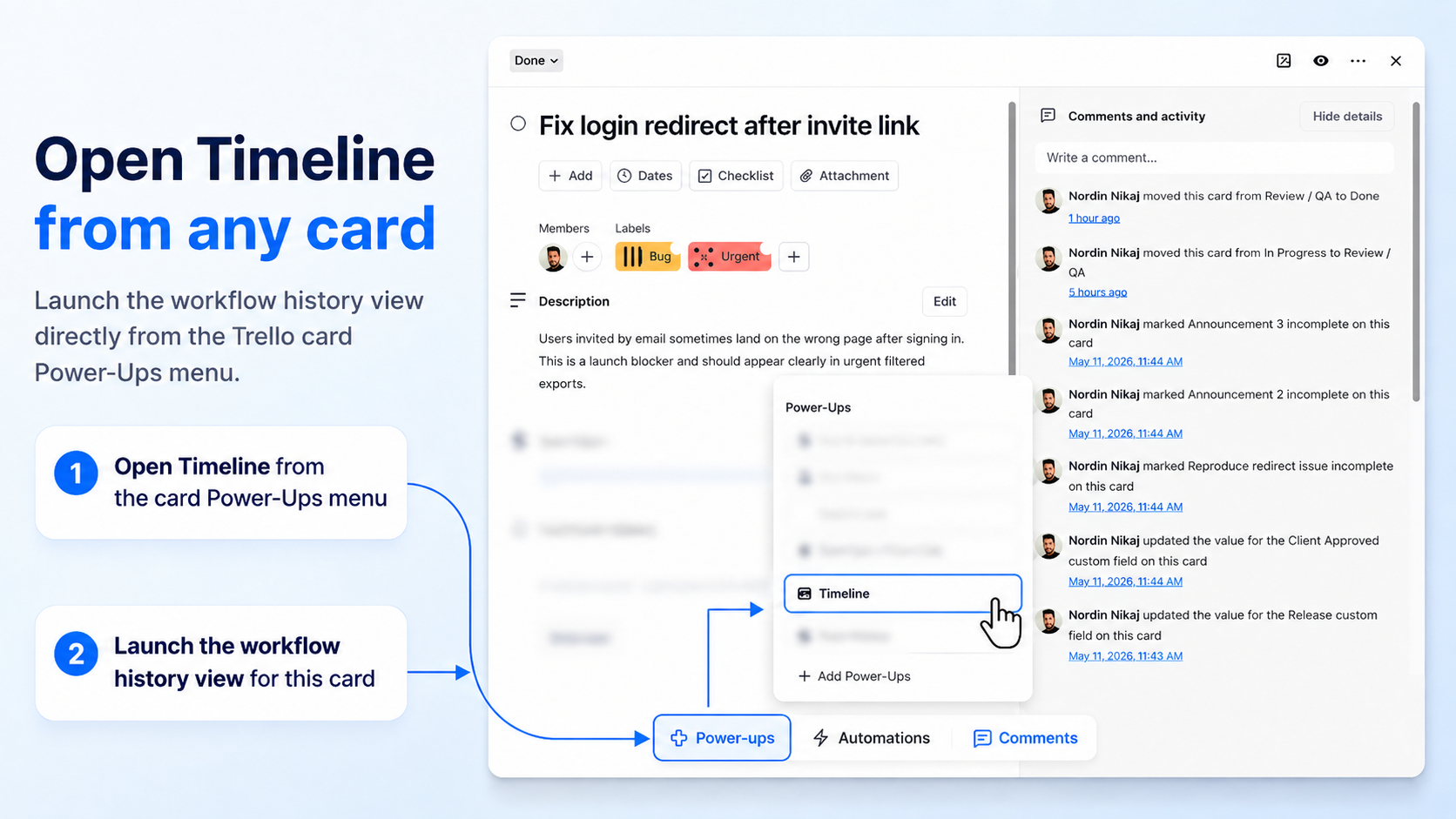
- Open the Trello card you want to understand.
- Choose Power-Ups in the card.
- Select Timeline to open Card Timeline+.
The screenshot below highlights the same menu entry. Trello’s layout may change, but the Timeline action belongs to the card’s Power-Ups menu.
2. Put the current stage in context
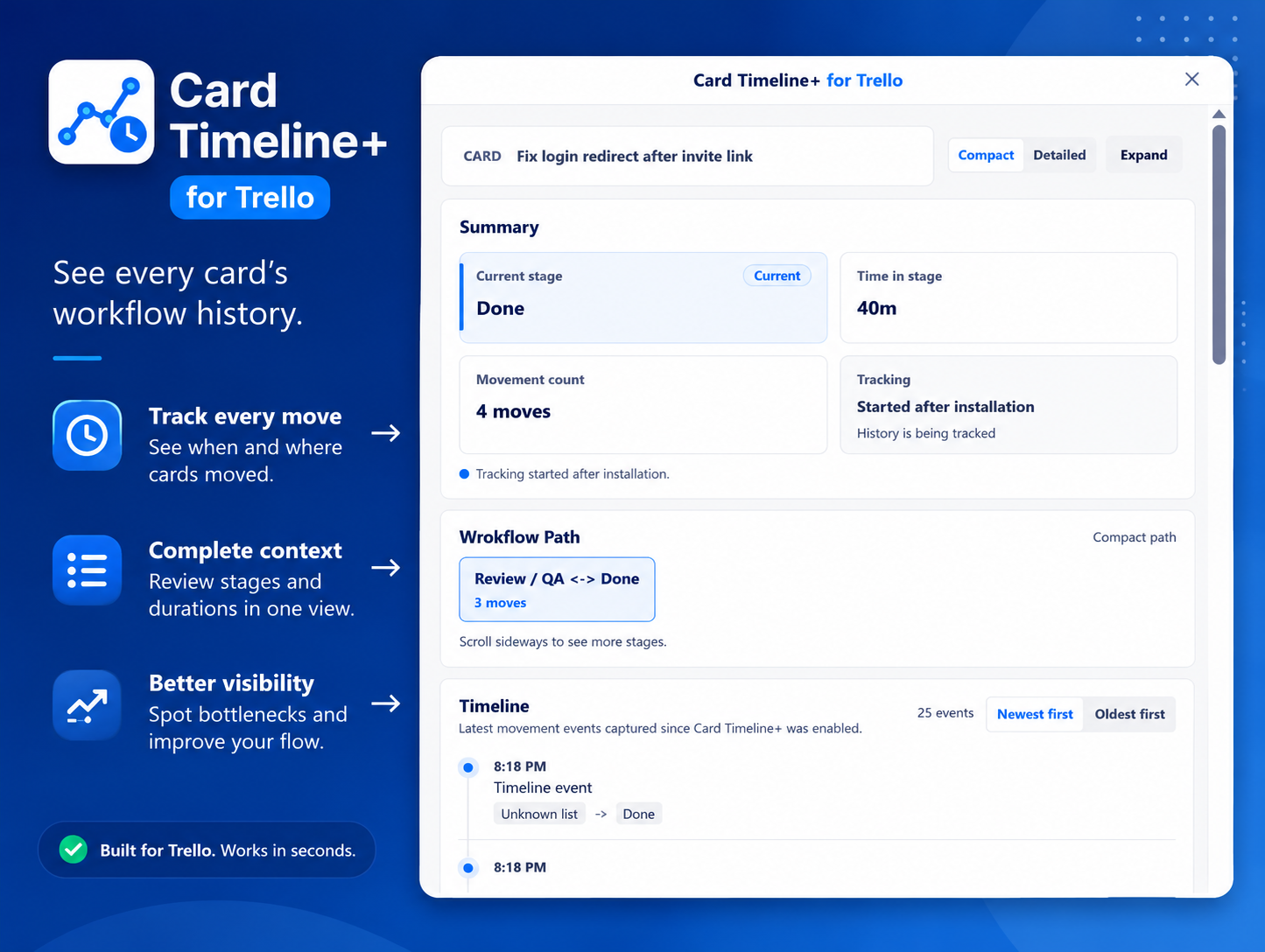
Start with the four summary tiles. They give you a quick orientation before you read individual events.
| Look at | What it tells you |
|---|---|
| Current stage | The list the card is in now. |
| Time in stage | How long it has been in the current tracked stage. |
| Movement count | The number of recorded list moves. |
| Tracking | Where the available history begins and whether it is partial. |
Read the tracking note before drawing conclusions. A short recorded path can mean tracking started recently, rather than that the card has never been anywhere else.
3. Follow the path and read the moves
The Workflow Path gives you the route through lists. The Timeline below it shows individual events, with a time and a source-list → destination-list pair.
- Choose Oldest first when you want to follow the recorded journey from its beginning.
- Choose Newest first to check the latest movement.
- Use Compact or Detailed to change how much space the view uses. Expand gives a long history more room.
For example, repeated moves between Review and In Progress can prompt a useful question: what keeps sending this card back? The movement log provides context; the card’s discussion explains the reasons.
4. Check what you learned
You should now be able to identify the current list, the latest recorded move and the route that led there. Check whether the history covers the period you care about before using it for a handoff or review.
To look at waiting time in more detail, continue with tracking time in a Trello list. For every control in the modal, see the Timeline reference.
Common questions
Why is an older move missing?
Tracking begins after Card Timeline+ is enabled on the board. It does not import earlier moves. Read the tracking note to understand the available coverage.
Why does an event say “Unknown list”?
A list name may not have been captured for that event, or the list may have been deleted. The label does not mean the card never moved.
Can I see who changed a description here?
This guide covers list movement history. Use Trello’s own activity view for other kinds of card activity.
Try it on your own board.
Add Card Timeline+, complete Trello authorization when prompted, and start with one card. Tracking begins after enablement.
Install Card Timeline+