 Card Timeline
The short answer
Open a card’s Timeline and read Time in stage. To see the duration without opening each card, enable Show on cards and select Time in stage in Card Timeline+ settings.
What “time in list” means
A Trello list often represents a stage such as Backlog, In Progress or Review. Card Timeline+ uses Time in stage for the duration in the card’s current tracked stage.
This is elapsed stage duration. It is not a timesheet, a measure of someone’s effort, or proof that a person has been working continuously. It helps you ask better questions about waiting and progress.
Check the coverage: tracking starts after enablement. Earlier time and list moves are not backfilled. Read the tracking note when the available history is partial.
1. Read the duration on one card
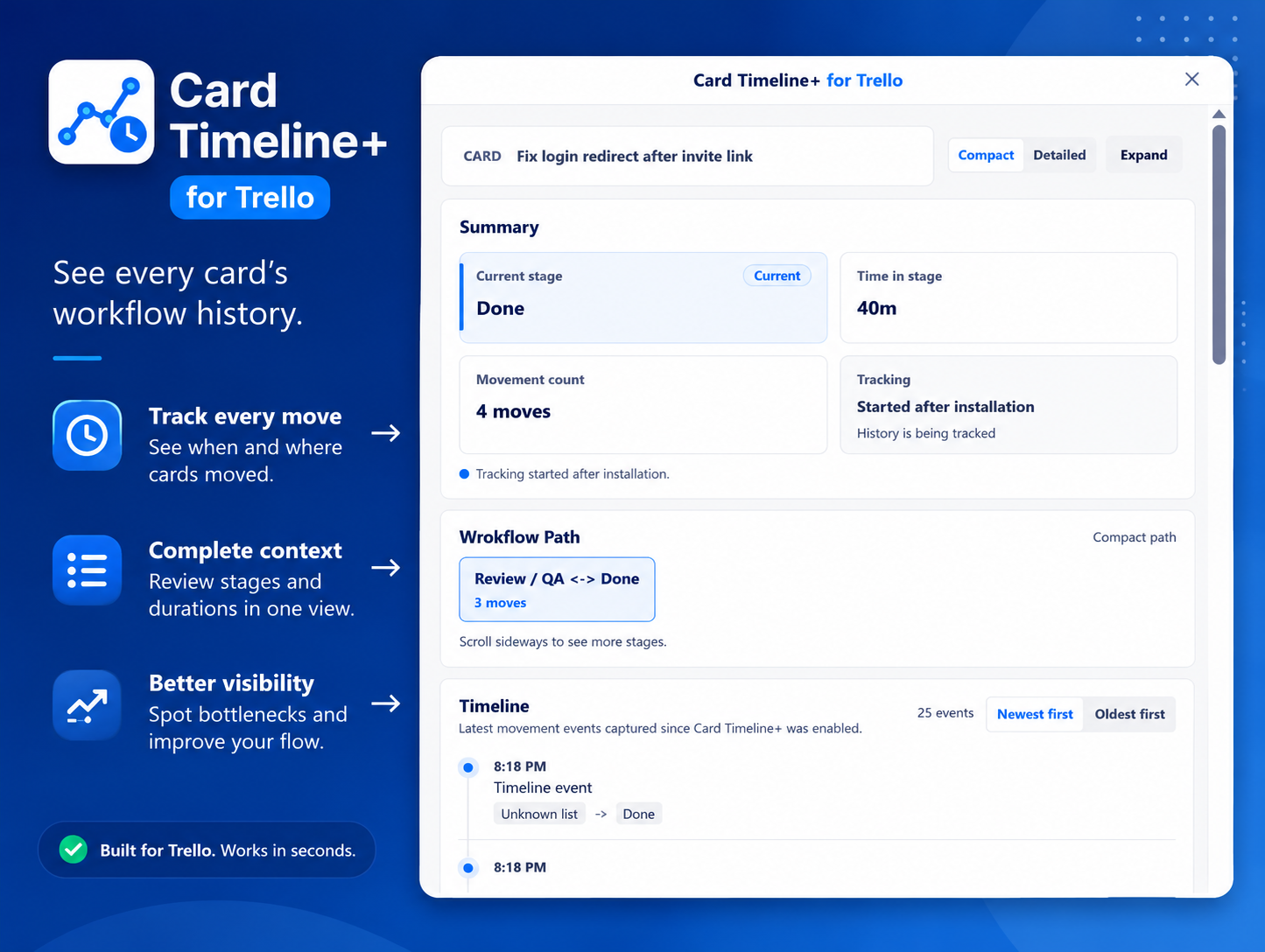
- Open the card, then choose Power-Ups → Timeline.
- Read Current stage so you know which list the duration describes.
- Read Time in stage beside it. Labels such as 40m and 2d express the duration in a compact format.
- Check the recorded moves if you need to understand when the card reached that stage.
The screenshot shows these values together. Use the values on your own card rather than comparing them with the numbers in the example image.
2. Show time directly on the board
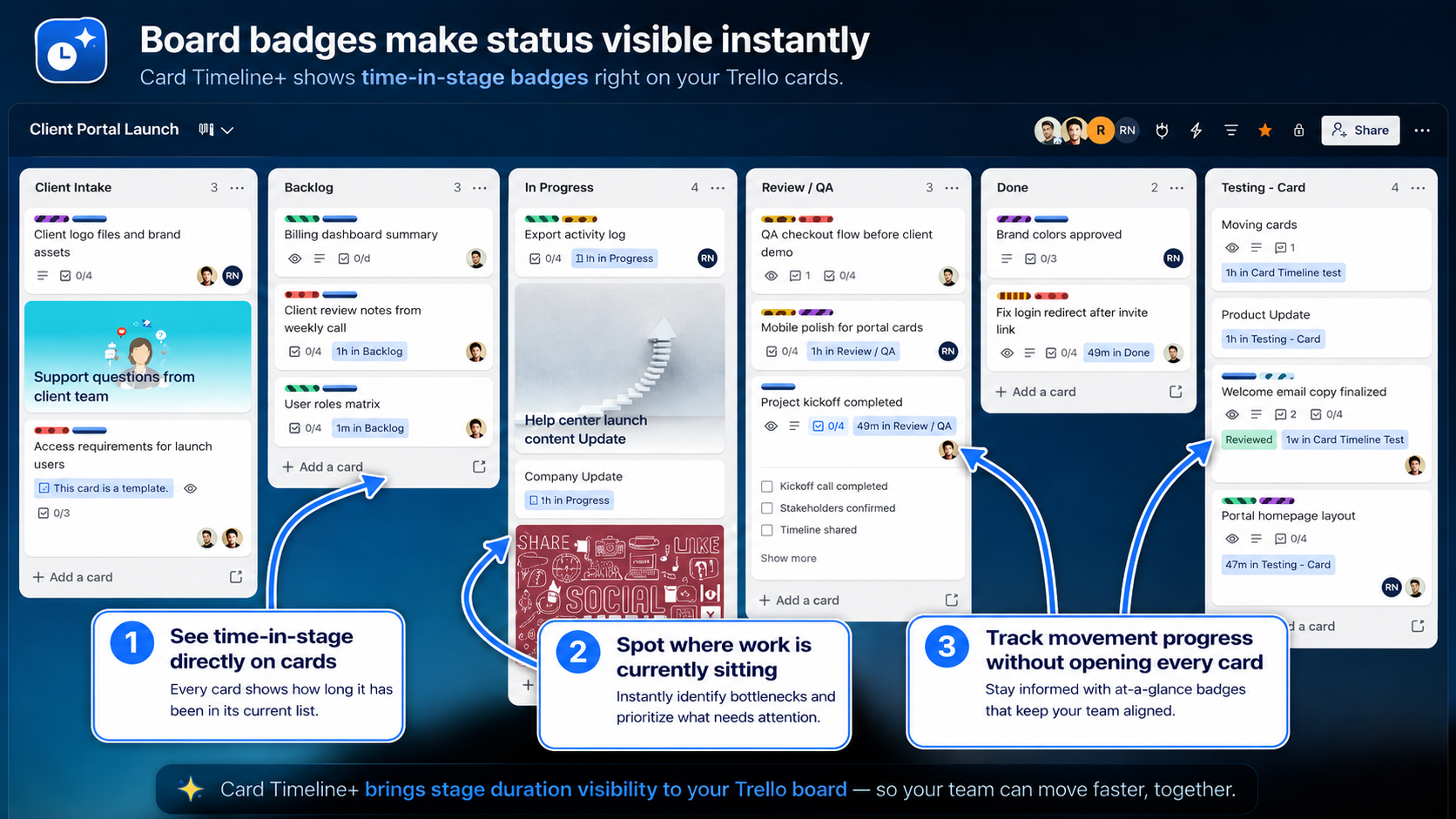
Card-front badges let you scan the board before deciding which cards to open.
- Open Card Timeline+ Settings from the board’s Timeline button or the Power-Up settings menu.
- On the Badge tab, enable Show on cards.
- Choose Time in stage. The preview shows the badge format.
- Return to the board. Reload it if the updated badge setting is not visible yet.
Each board uses one badge mode at a time. Choose Moves when movement count is more useful, or keep Time in stage for waiting-time reviews. See the badge reference for the available controls.
3. Read long waits in context
Look at the list name as well as the duration. A card that has spent several days in Review may need a follow-up. A card that has spent several days in Done may simply be finished.
When a card returns to a list, read its movement history to distinguish the current stay from earlier visits. Where Full Timeline and workflow analytics are available, you can examine tracked stage visits in more detail.
Do not compare a recently enabled board with a long-tracked board as though their recorded coverage were identical. The tracking note is part of the result.
4. Use the board in your next review
You should be able to see a duration on the card front, open that card and relate the number to its current stage and recorded journey. Badges may lag briefly after a move; refresh the board before treating a display difference as a tracking problem.
For a repeatable review routine, continue with finding stalled cards in Trello. That guide combines badges with a stage-warning threshold and a short team check.
Common questions
Is time in stage the same as hours worked?
No. It describes elapsed duration in a tracked stage, not billable time, attendance or individual productivity.
Why is a badge missing?
Check that Show on cards is enabled and that the intended badge mode is selected. A card may not have enough tracked history yet. Reload the board after a settings change.
Does this show all historical time before installation?
No. Card Timeline+ tracks after enablement. Existing work may have a longer real history than the recorded coverage.
Try it on your own board.
Add Card Timeline+, complete Trello authorization when prompted, and start with one card. Tracking begins after enablement.
Install Card Timeline+