Timeline modal
The timeline modal is the main view. It answers one question: where has this card been, and for how long?
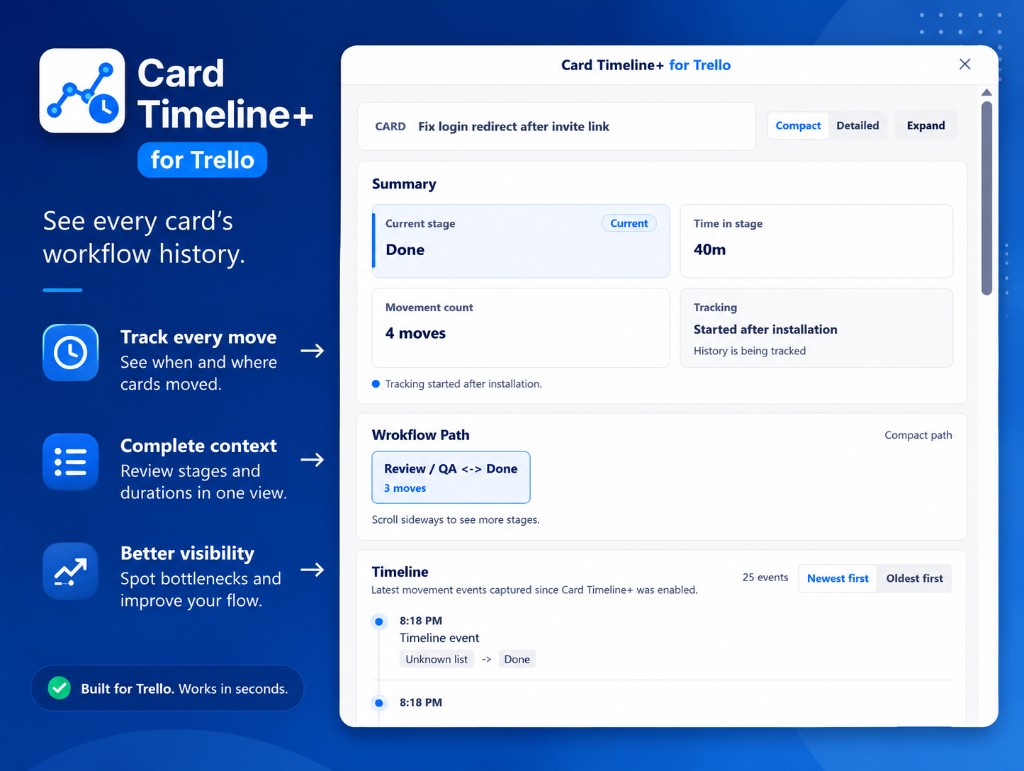
Header
The modal opens with Card Timeline+ for Trello® at the top. Below that, the current card name appears in a bar with view controls on the right.
Summary
Four quick facts in a 2×2 grid:
| Tile | Shows |
|---|---|
| Current stage | The list the card is in now, with a Current badge |
| Time in stage | How long in the current list (e.g. 40m, 2d) |
| Movement count | Total list moves (e.g. 4 moves) |
| Tracking | When history started and whether it is complete |
A note below the grid explains when tracking began — for example, Tracking started after installation.
Workflow path
A horizontal view of the card's route through lists.
- Each stage shows list names and move count between them.
- In Compact view, the path uses a shorter Compact path layout.
- Scroll sideways when the path is long.
Timeline
A chronological log of every list move since tracking started.
- Sort Newest first or Oldest first.
- Each event shows the time, Timeline event, and list pills (
from list→to list). - The destination list is highlighted in blue.
View controls
Use the top-right controls in the card bar to change density:
| Control | Use when |
|---|---|
| Compact | Quick scan on smaller screens |
| Detailed | Full labels, date groups, and spacing |
| Expand | Fullscreen for long histories |
Export
At the bottom, Export with Board Export+ sends this card's timeline to Board Export+ as PDF, CSV, Excel, or JSON. The card needs at least one tracked move.
Empty or partial history
| Situation | Meaning |
|---|---|
| No events yet | Card has not moved since install |
| "Unknown list" | Move happened before a list name was captured |
| Partial tracking | History starts from install — not retroactive |
Next: set up card badges or settings.